Introduction
Welcome to the BizFlowsEngine documentation. This is your complete guide to building, managing, and scaling your business workflows with our platform.
🔐 After Login — BizFlowEngine Dashboard Overview
After logging in, two types of users are available:
- Request Initiator
- Authorizer
You can log in with either user. Once logged in, the Main Dashboard appears, showing:
- Available menu options (based on access rights)
- Statistics related to BizFlowEngine activities
📂 Dashboard Components
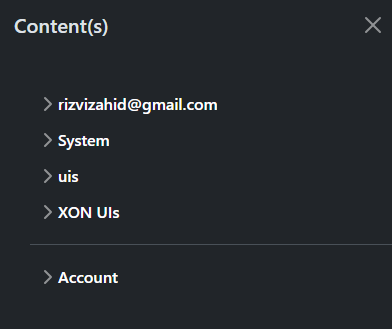
1. Menu Toggle
Toggles between the menu panel and the UI interface.

2. Available Menu Options
Displays menu items based on the user’s access rights.
3. Notifications
Shows all system-generated notifications from BizFlowEngine.

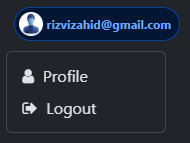
4. User Info
Dropdown with profile and sign-out options.
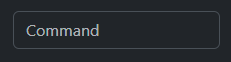
5. Command Navigator
Each menu option is linked to a command. You can directly navigate to a specific UI using this navigator.
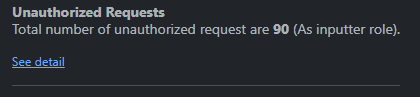
6. Unauthorized Requests
Displays requests you initiated that are pending approval from an assigned authorizer.
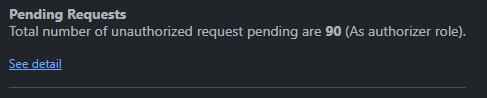
7. Pending Requests
Shows requests waiting for your approval.
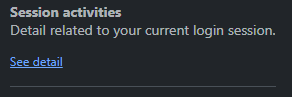
8. Session Activities
Displays your session history and actions performed during each session.
9. All Updates
Shows additional statistics and inquiries related to your activities.
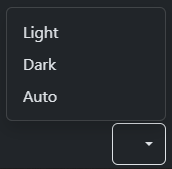
10. Theme Switcher
Toggle between available themes (e.g., Dark and Light).
✅ Summary
The dashboard is designed to give users quick access to:
- Workflow status
- Notifications
- Session logs
- Theme preferences
- Navigation shortcuts
📁 Image Path Note:
Make sure all images are placed in: